
Live Streaming
Use the Video Screen smart item together with the Scene Admin smart item to stream live video into your scene.
Decentraland offers different ways to stream live video into your scene:
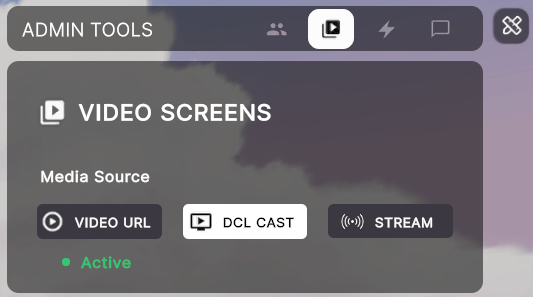
- DCL Cast (Easy Mode): Use Decentraland’s free streaming web app to easily share your camera or screen with other players in the scene, no need to set up a streaming software. This mode has the lowest latency and is the easiest to set up.
- Stream (Advanced Mode): Use a streaming software like OBS to stream through Decentraland’s streaming infrastructure. This mode allows you to have more control over the stream, like screen layout and audio sources.
- Video URL (Advanced Mode): Point to your own streaming infrastructure, by pasting the URL into the Video URL field.
Streaming works in Worlds and Genesis City, with no audience limits on the scene side.
Configure the scene #
The following steps are common to both DCL Cast and Stream methods:
-
Add a Video Screen smart item to your scene.

-
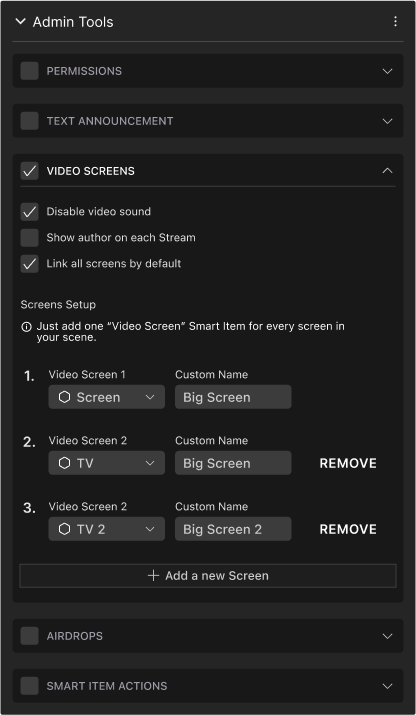
Add a Scene Admin smart item and enable the Video Screens section. Select each screen from the dropdown and give it a friendly name for the admin UI.
-
Publish your scene (World or Genesis City) and enter as a user with admin permissions.
Once your scene is published, you can enter as a user with admin permissions and configure the streaming settings.
💡 Tip: If you add multiple Video Screens, configure all but one’s source to point to the same video player, see Multiple Video Screens for more details.
DCL Cast #
Sharing access to the app #
Enter your published scene as an admin user, and open the admin panel. Select the Video tab, then select the DCL Cast functionality.
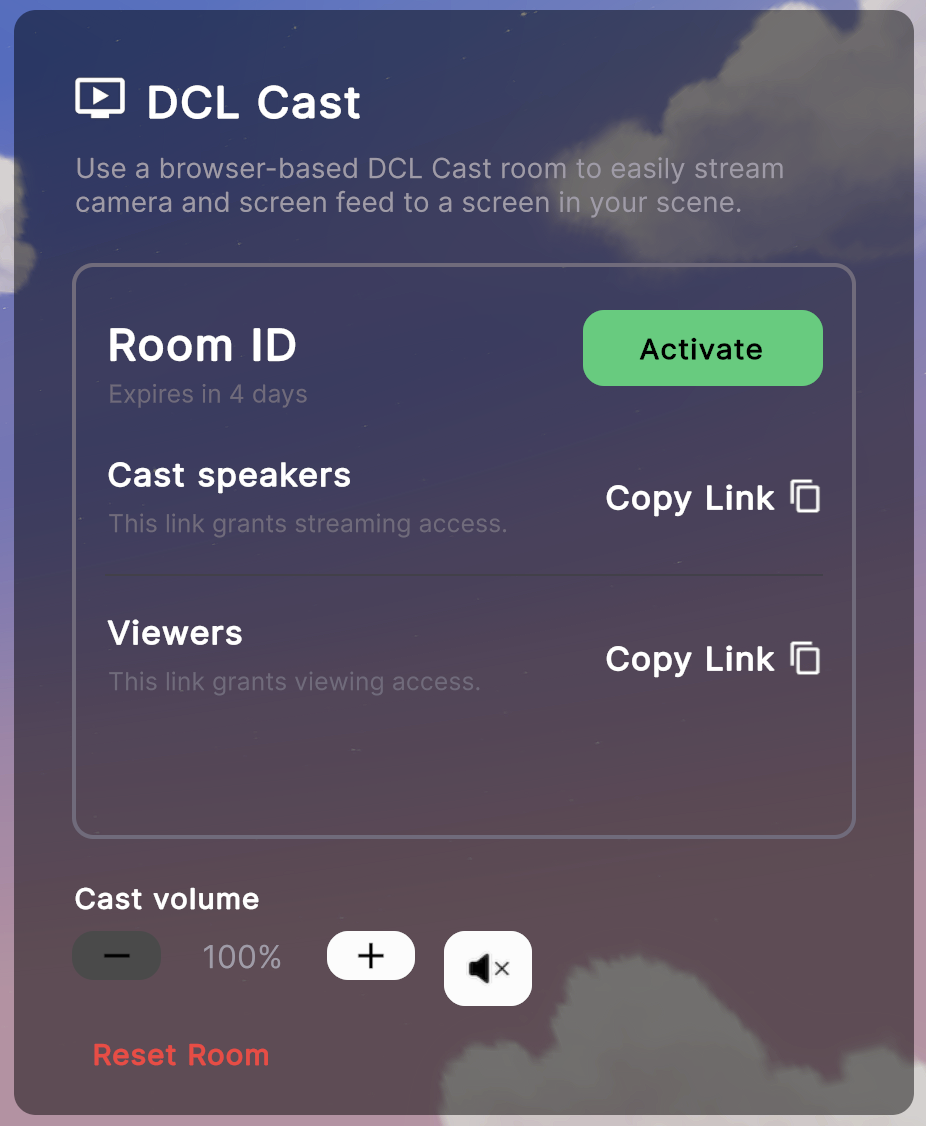
You’ll see two links that you can copy and share with others.
-
Cast Speakers: This link is for the speakers to use to cast their video to the scene.
❗Warning: Treat the steaming link as a secret, only share it with people you trust. Reset the link between presenters if needed.
Only one person can stream to a scene at a time. When finished streaming, close the DCL Cast browser tab to free the channel.
-
Viewers: This link is for the audience to use to watch the video from a browser. This is useful for players who are currently not inside Decentraland, or even on a mobile device.
Click the Copy link button to copy the links to the clipboard.
When ready to stream, click the Activate button to make the stream visible to the audience in the scene.
If for any reason you need to reset the room, click the Reset Room button to generate a new one. Anyone who’s currently streaming will be disconnected.

Using the DCL Cast app #
When someone pastes the speaker link into a browser, they’ll see a screen like this:
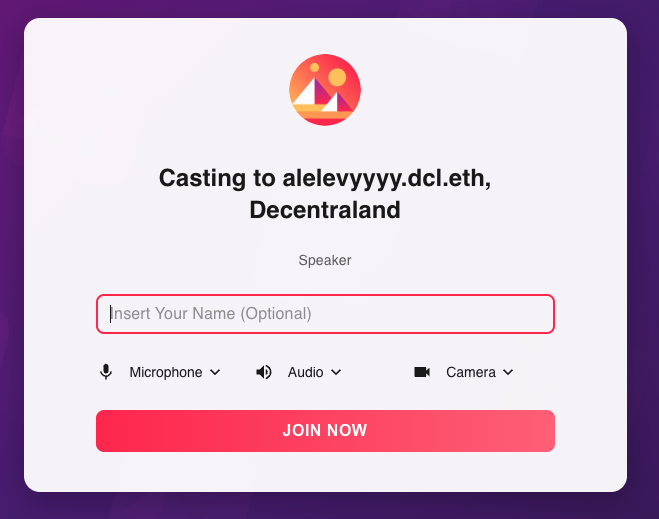
The browser will ask for permission to share your camera and microphone. You can also configure the different input devices to use for the stream.
📔 Tip: Use Google Chrome or a browser built on the Chrome engine. These browsers offer the functionality to easily share both video and audio directly from a browser tab.
Users can input a name (doesn’t need to match their Decentraland username) and click the Join Now button to start streaming.
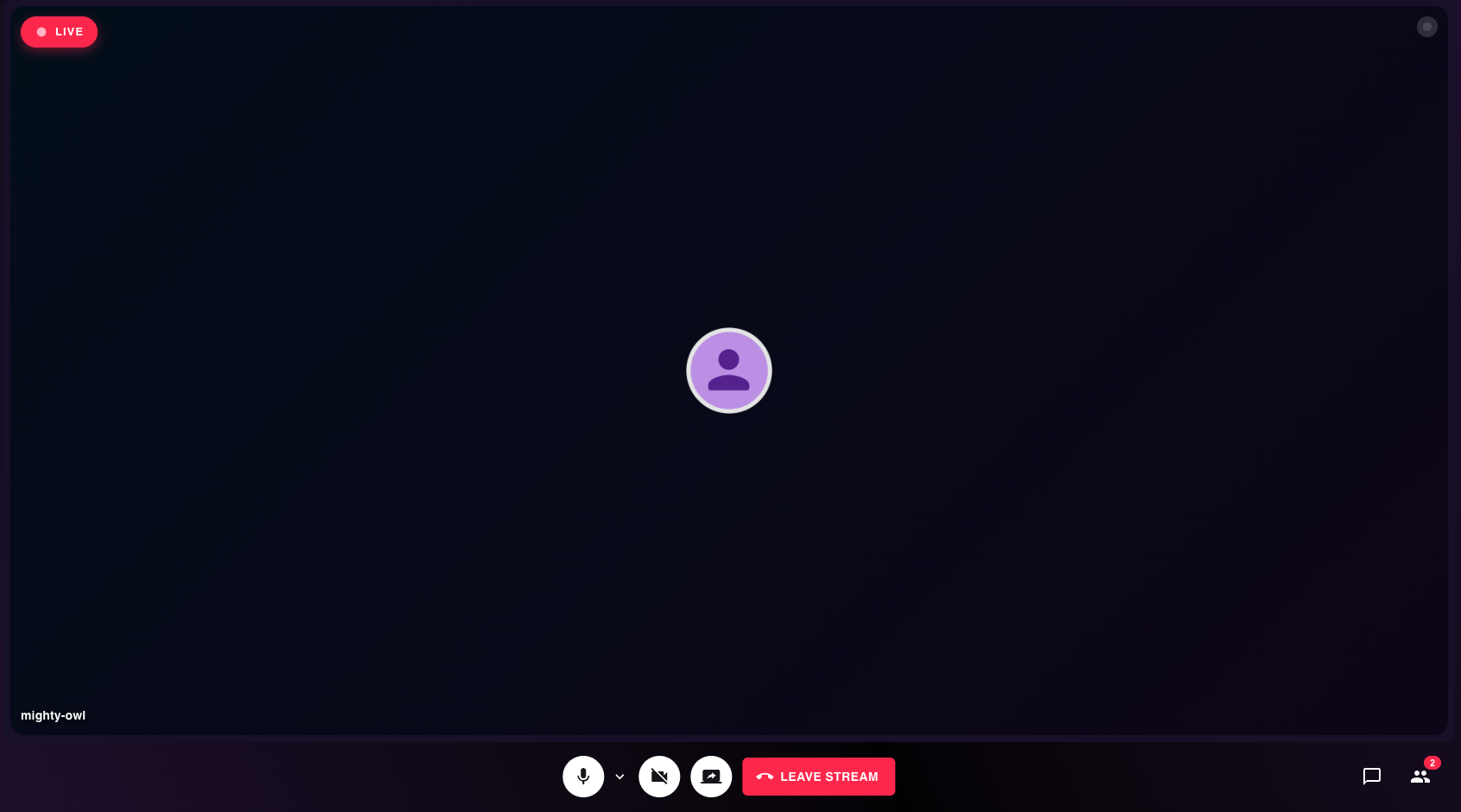
Once streaming, the app is similar to various familiar video conferencing apps, with buttons to mute/unmute, share camera and screen, and a chat interface.
The chat is read-only, and listens to all messages sent by players inside the scene in Decentraland. This is great to keep in touch with the audience, even if you’re streaming from a different device.
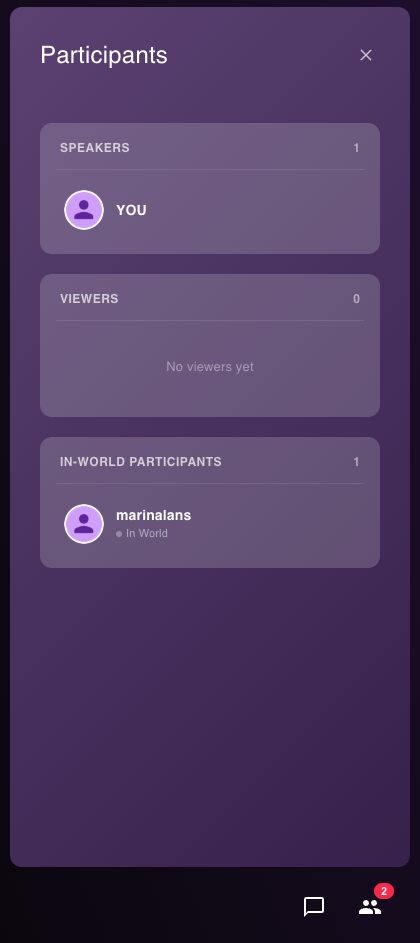
On the Participants tab you can see three lists:
- Speakers: The people who are currently streaming to the scene.
- Viewers: The people who are currently watching the stream from a browser.
- In-world participants: The players who are currently inside the scene, watching the stream in-world.
Stream method #
To use the Live Streaming feature on your scene you’ll need to install a streaming software that can output to an RTMP endpoint (e.g. OBS , XSplit , StreamYard ).
Get stream credentials #
-
Open the Admin UI in the scene (top‑right icon).

-
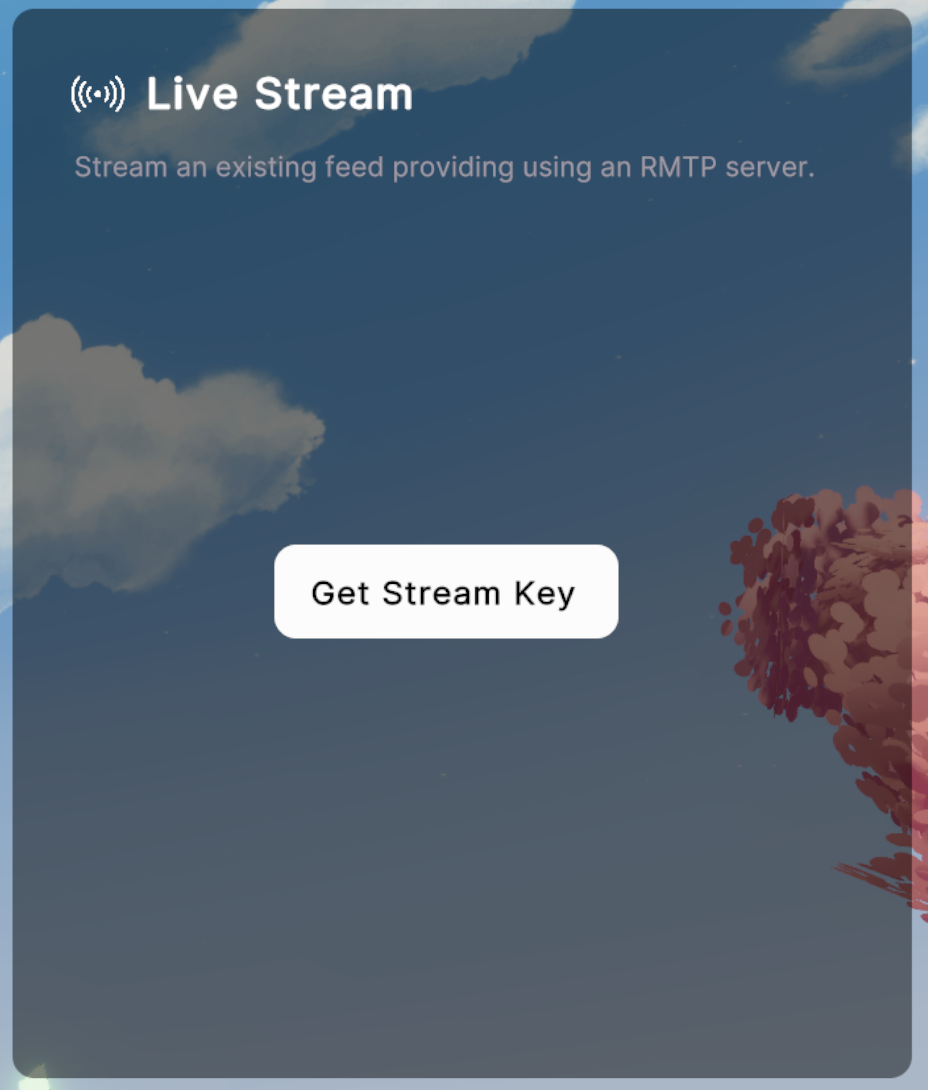
In the Video tab, switch to Live and click Get Stream Key.
-
Copy the RTMP Server and Stream Key into your streaming software.

❗Warning: Only one person can stream to a scene at a time. When finished streaming, click Stop Streaming in your software to free the channel.
Start and control the stream #
-
Start streaming from your software.
-
In the Admin UI, click Activate to show the stream in the scene.
Stream keys #
Stream keys are generated per scene and are valid for 4 days (96 hours). A single live session can run up to 4 hours continuously.
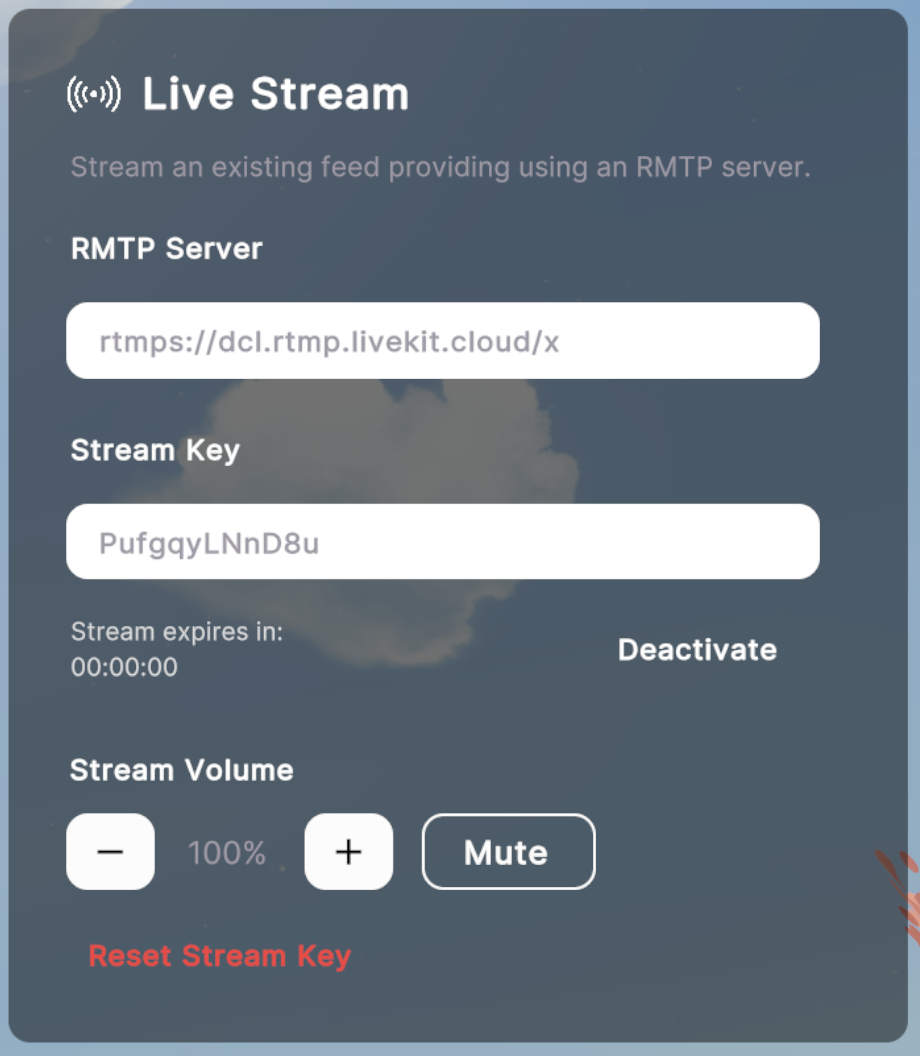
- Click Reset Stream Key to revoke the current key and issue a new one. Ongoing streams will stop.
- Each scene has its own streaming address and key. Admins can share the key with external streamers.
- Only one stream can be active per scene at a time; starting a new one will overwrite the current stream.
❗Warning: Treat stream keys as secrets. Reset the key between presenters if needed.
Streaming from URL method #
You can also stream using third‑party infrastructure by configuring the Video Screen to Video URL and pasting a stream URL.
- The URL must be
httpsand CORS‑enabled by the provider (YouTube and similar sites won’t allow direct playback). See About External Streaming . - Managed providers include Vimeo , Livepeer Studio and Serraform .
- Tips for encoder setup: Setting up OBS for successful streaming .